Studio Uploader
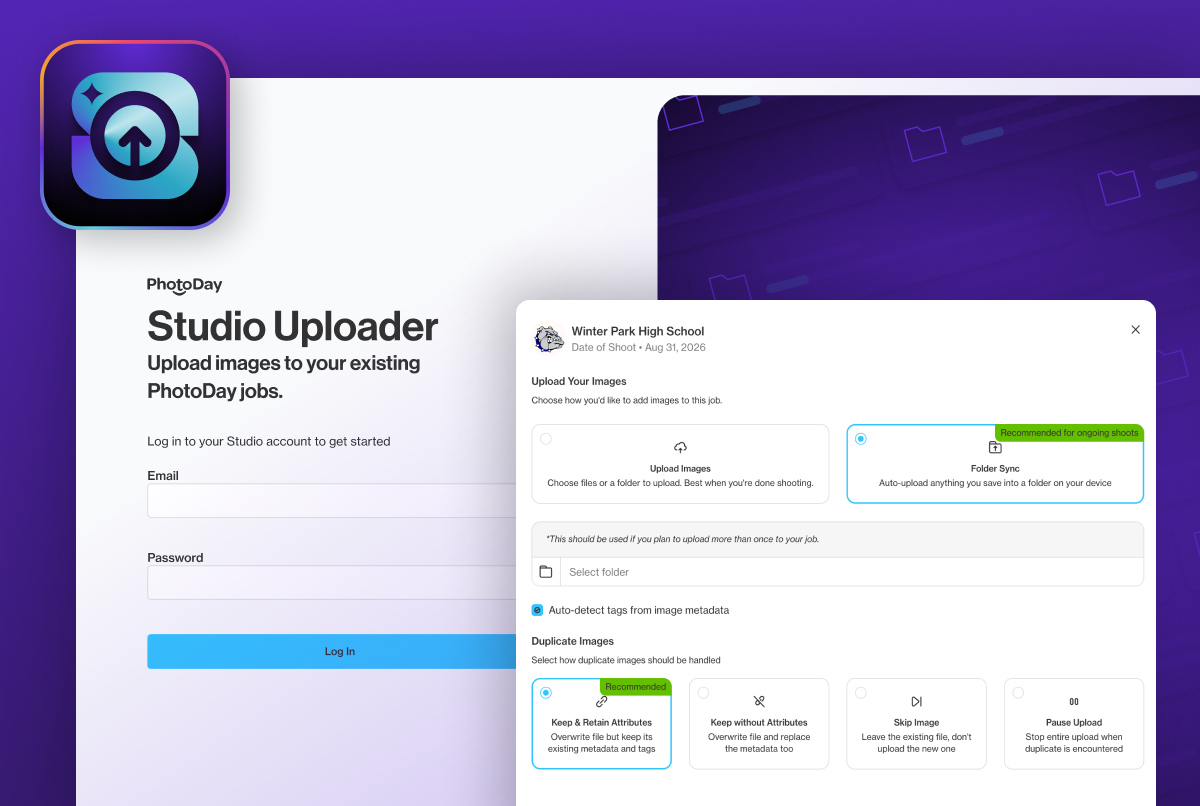
High-volume jobs deserve a better upload. Our new Studio Uploader app delivers.
Picture day isn't done until the last image lands in the gallery. For studios running large or high-volume jobs, that last step has too often been the slowest one: crashed browser tabs, dropped connections, and uploads that start over from zero.
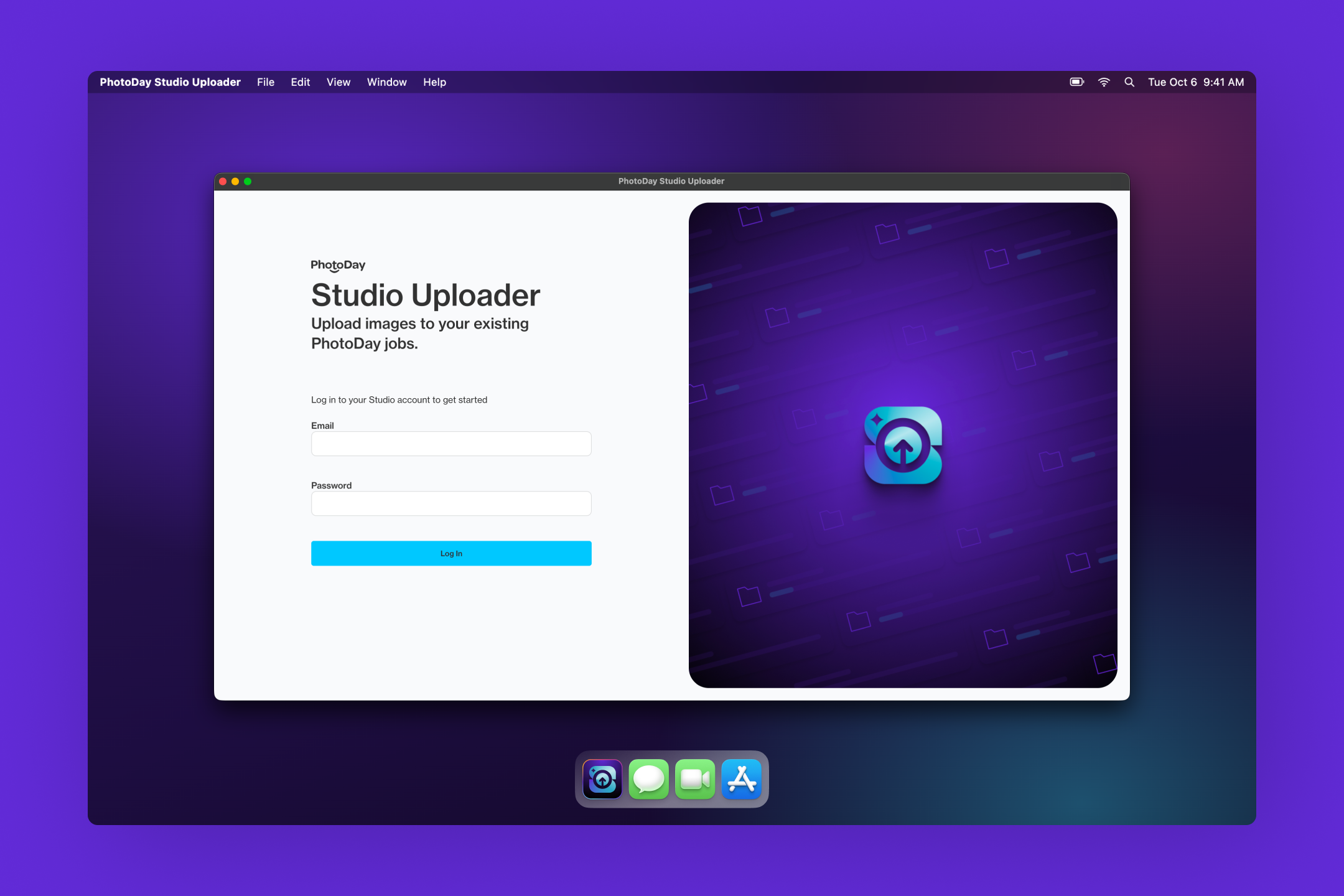
Studio Uploader, a new desktop app for Mac and Windows, moves uploading out of the browser and onto your computer. Upload all of your photos at once, queue up multiple jobs, and let the app pick up right where it left off if anything gets interrupted. For on-site days, an optional hot folder uploads new images the moment they're saved.
Faster, steadier, and built to keep going
The existing browser uploader works well for smaller jobs, but when a job has thousands of photos, its limits show up fast. If you’ve ever experienced long upload times, canceled uploads if your computer crashed, galleries stuck in processing, and ultimately, parents waiting on photos, you’re not alone.
Delays are the last thing you need in the middle of a busy season, so we rebuilt PhotoDay’s upload process from the ground up for the way you actually work.
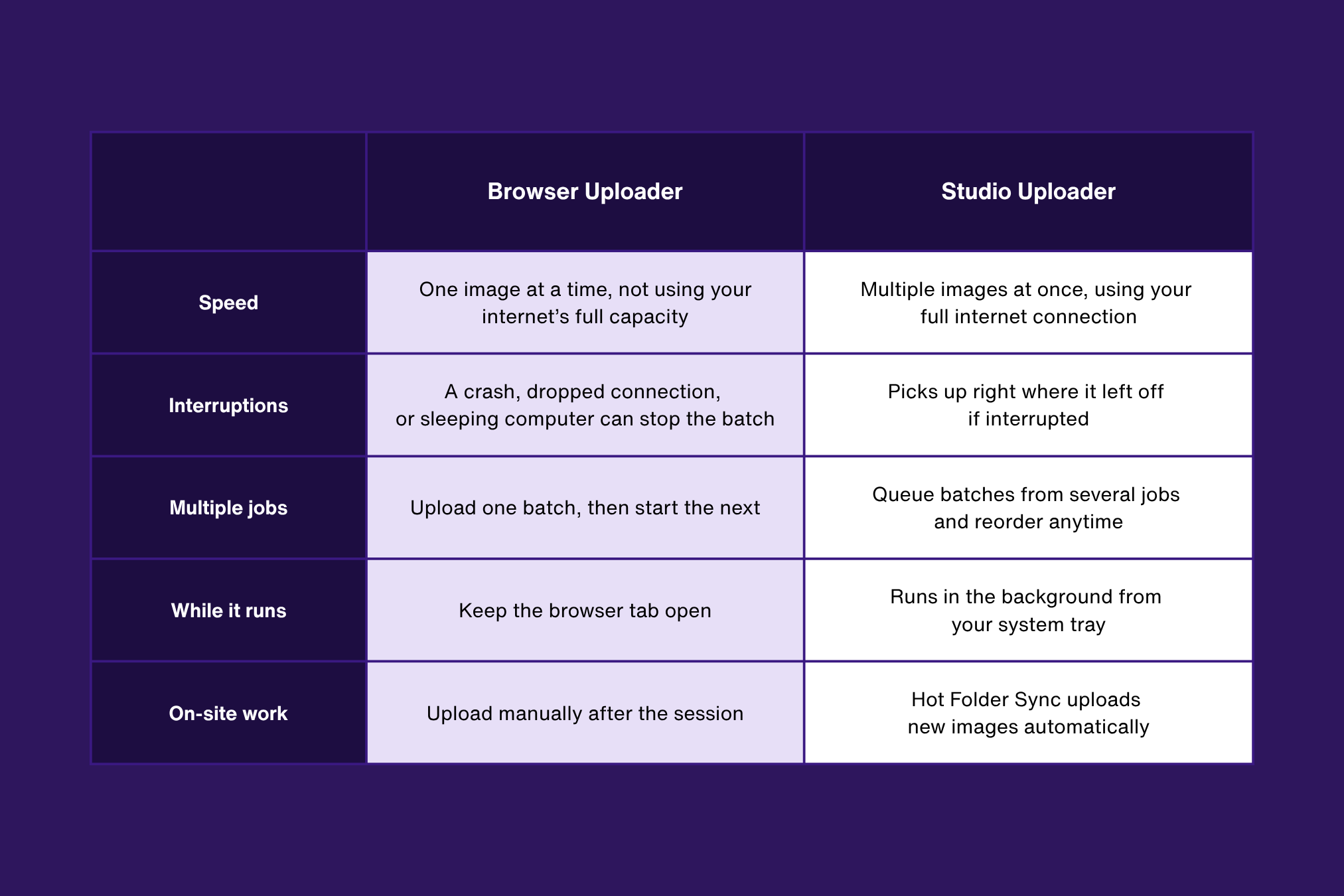
Now you know how it’s different. Let’s explore how everything works.
“This has been a huge game changer. Went from hours to minutes here. Brilliant addition.”
— Jason Marino, Strada Studios
Point. Drop. Done.
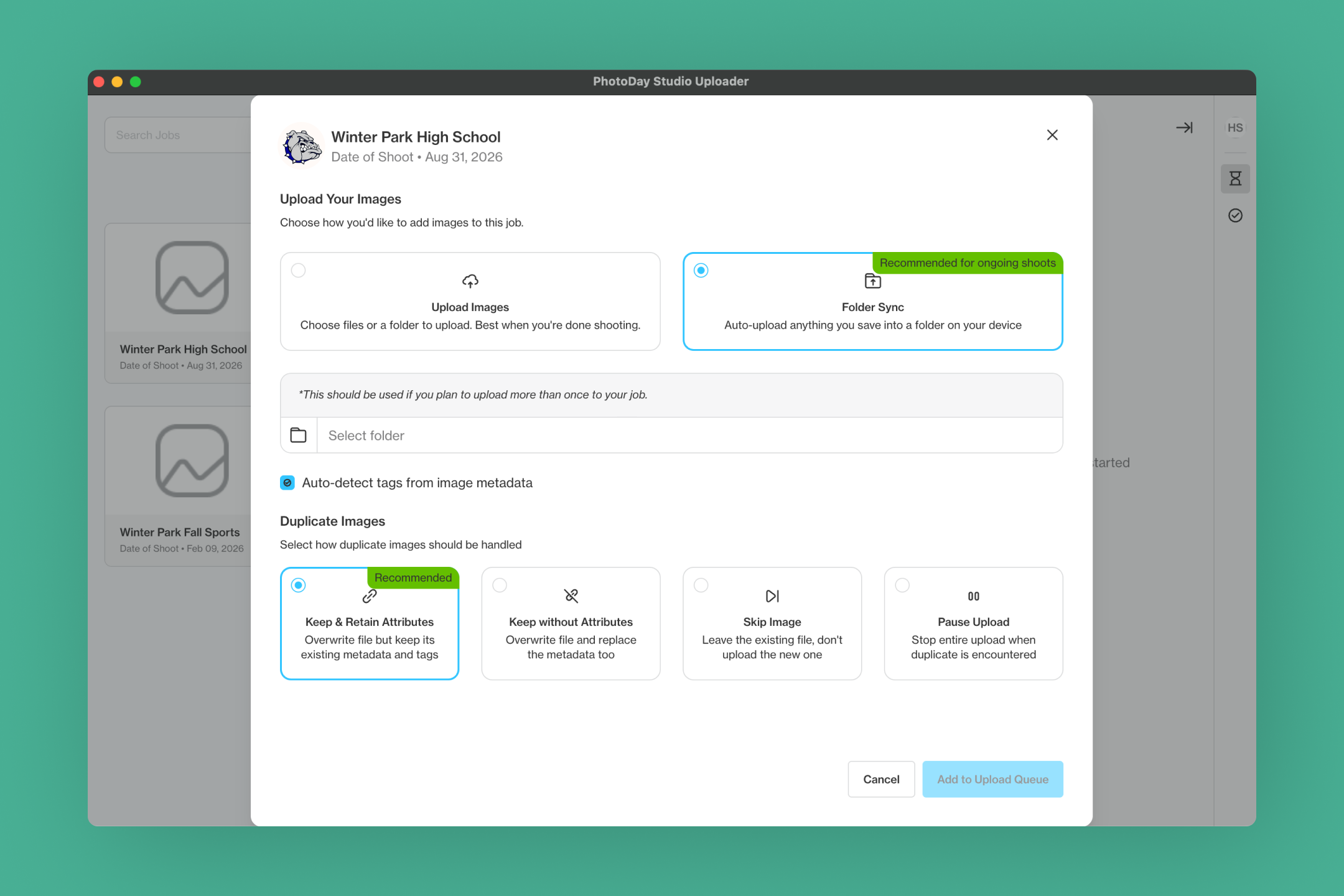
Download the Studio Uploader app (links), sign in with your PhotoDay studio account, and your jobs are right there, sorted by picture day. Select a job, drop in a folder, choose how to handle duplicates, and add it to the queue. That's it.
Parallel uploads
Studio Uploader sends multiple images at the same time instead of one after another. Your full connection goes to work, so big jobs move faster.
One queue for every job
Add batches from several jobs to the same queue and walk away. You can pause, resume, cancel, or rearrange anything waiting in line, so the job with the earliest gallery date goes first.
Automatic resume
If your connection drops or your computer falls asleep, Studio Uploader picks up where it left off. You won't have to restart or re-upload.
Runs in the background
Once an upload is queued, you can minimize the app and let it run from your system tray. Turn on notifications to hear when an upload finishes or pauses. We'll even send you an email.
Clear answers when something goes wrong
If a few files don't make it, we’ll tell you exactly which ones failed and why, so you can fix them with confidence.
Built for teams
Multiple team members can upload to the same job at once, and duplicate handling applies for everyone uploading. Just give each person the Studio Uploader permission in their user settings.
Upload as you go with Hot Folder Sync
Working a tournament, recital, or event where images come in all day? Choose Folder Sync, and any new image saved there uploads automatically. No dragging, no re-selecting, no end-of-day upload marathon.
It's made for live and tethered shooting, where images are added continuously. You can run up to 15 hot folders at once, one for each job, field, or station. By the time you pack up, your images are already on their way to the gallery.
Made to improve your volume workflow
Studio Uploader isn't a generic file transfer tool added onto PhotoDay. We built it to solve your specific workflow headaches.
- It knows your schedule. The main screen shows jobs within a week of picture day, with filters for active hot folders and recent uploads.
- It uploads straight into the job. Images go directly where they belong, with duplicate rules you set once and can override any time.
- It fits how studios really run. Multiple uploaders on one job, hot folders for on-site work, and a queue that handles a full weekend of events in one place.
- It stays out of your way. Stay signed in, launch at startup, update automatically, and let it work in the background.
When to use the app vs. browser
The browser uploader isn't going anywhere! It's still there when you need it, but you should consider using the Studio Uploader app for the following scenarios:
- Large school picture days: Queue every class folder at once and let it run overnight.
- Tournament and league weekends: Line up multiple jobs in one queue and reorder by gallery date.
- On-site and tethered shooting: Use Hot Folder Sync so images upload as you go.
- Multi-photographer teams: Have several team members upload to the same job at the same time.
- Unreliable Wi-Fi: Automatic resume means a dropped connection is just a pause, not a restart.
Get started with Studio Uploader
Studio Uploader is live now! Getting set up takes just a few minutes:
- Download the app for your computer: Mac (Apple Silicon), Mac (Intel), or Windows.
- Sign in with your PhotoDay account.
- Select a job and start uploading.
{{rt-cta-button}}


