Job-Specific Offers

A new way to manage offers
Have you ever wished you could assign specific offers to particular jobs? Now you can with our newest feature enhancement: Job-Specific Offers!
Different photography studios have varied needs, and we know that one size doesn’t always fit all. So we evolved our offer system to allow you to limit a discount or free shipping offer to one or more jobs.
Simply put, you’re in control of which offers can be redeemed in each job.
Let’s explore how this update can improve your business with just the click of a button.
Introducing Job-Specific Offers vs Global Offers
The way offers previously worked in PhotoDay is now called Global Offers—customers can use this offer type in any job with global offers enabled.
The new addition is called Job-Specific Offers—this offer type can only be used if it’s assigned to a job.

We’ve heard your requests for varied offers for different job types and your concerns about customers sharing offer codes.
These new functions give you the ability to create offer codes that are only eligible for specific jobs, to set job-specific expiration dates and max redemptions, and you now have the option to disable the use of any global offer codes in a job.
Keep reading for some real-world examples of when to use Job-Specific Offers.
Use Case: Different Markets, Different Offers
André uses a “Free Shipping for Orders Over $35” offer for all of his AdvancePay offers. He uses a “$10 off $100” offer for all of his Gallery Promotions. Both of these are set up as global offers. Now, André is publishing new portrait galleries where these offers don’t apply. So he disables global offers in these portrait jobs, ensuring that offer codes can only be redeemed if specifically assigned to the job.
Use Case: Order Urgency Strategy
Nellie wants all customers to receive 15% off their order, but only if they order within the first week. She creates a job-specific discount offer and attaches it to each intended job with an expiration date of one week after the publish date. This way, the offer code will be valid only in the jobs it was added to and only for the first week of each gallery, since the code can have a different expiration date per job.
Use Case: Offer Code for Coaches
Lou is giving the Little League coaches a 50% off coupon for their orders. They make a job-specific offer and add it only to the Little League job so that it can’t be redeemed in other galleries. In the job settings, Lou sets the max redemptions to match the number of coaches. The same code can be used for coach discounts in other jobs with their own max redemption and expiration settings, or Lou can create a new job-specific offer for each scenario.
See How it Works
While we revamped the design to be even more user-friendly, the process of creating an offer starts the same way you’re already used to. In the PhotoDay Studio Panel, go to Store > Offers > Create an Offer.
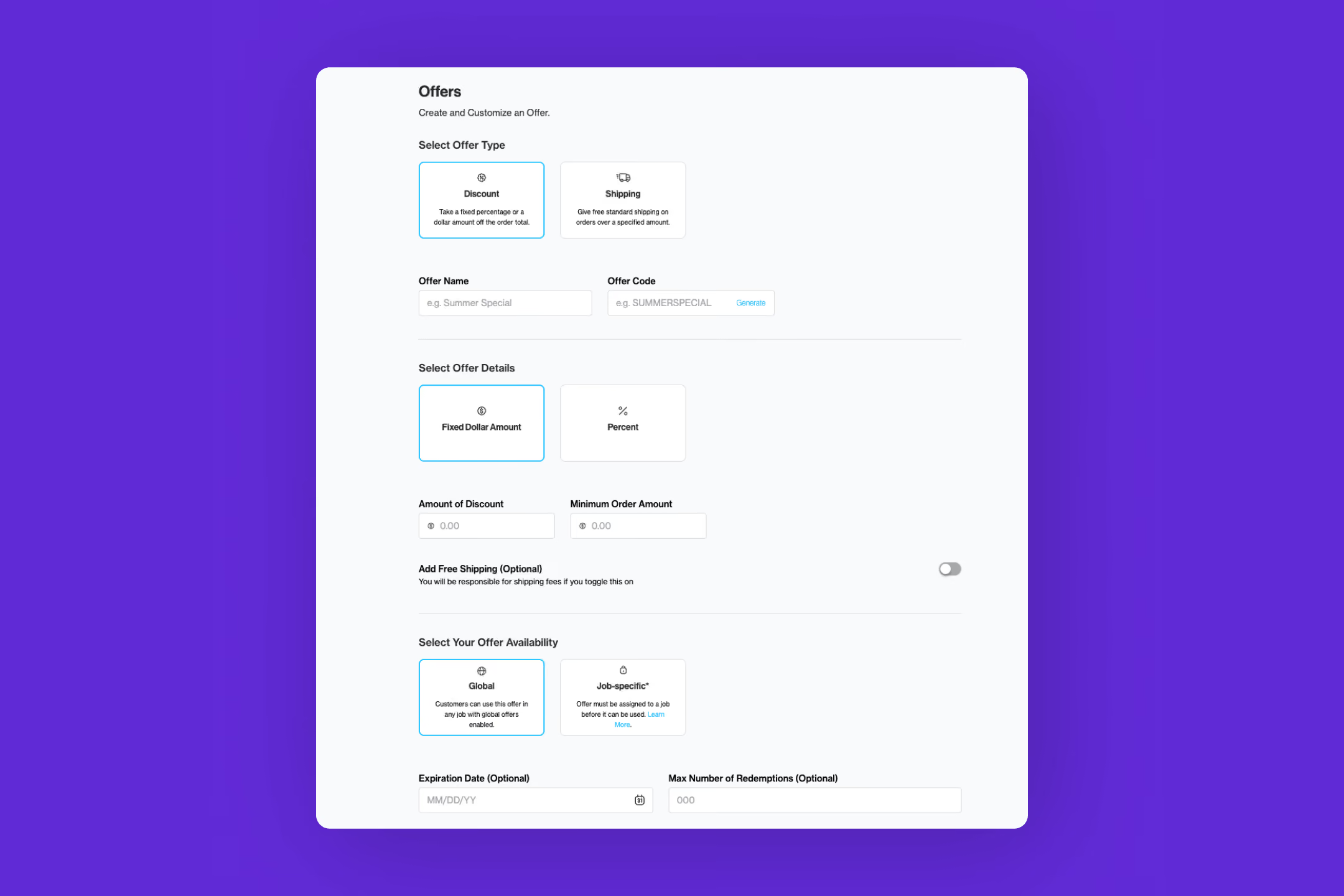
- Choose between Discount or Free Shipping
- Enter a name and code (or let us generate one for you)
- Make it a dollar amount or a percentage off
- Set the discount amount
- Add a minimum order amount and/or free shipping, if you want
- Decide if you want this offer to be Global or Job-Specific
Now let’s see what’s changed in your job’s settings. Open a Job > Settings > Offers and Gallery Promotion.
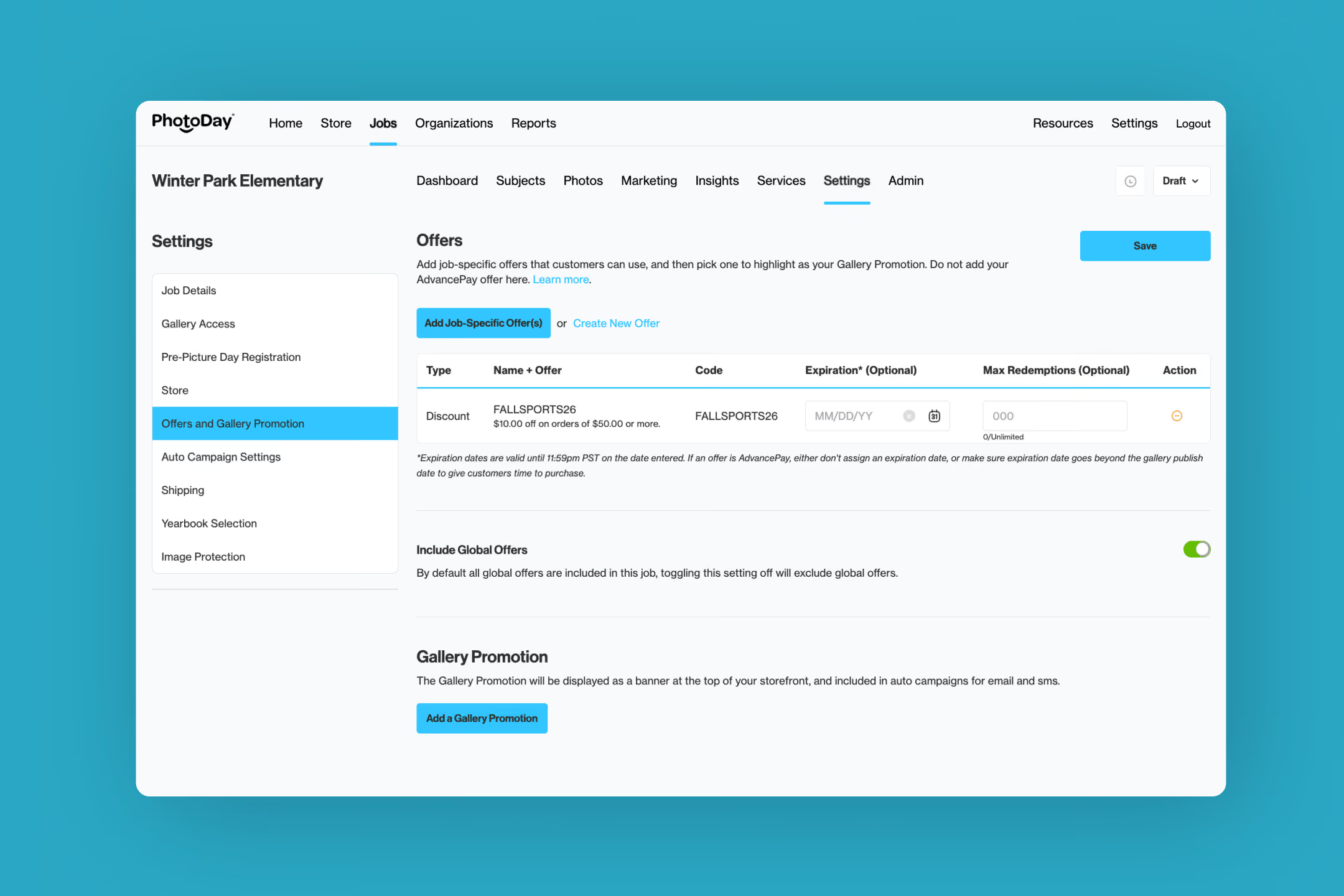
Here you can add offers to the job and customize each one’s expiration date and maximum redemptions (like we mentioned in Nellie’s Use Case). By default, “Include Global Offers” will be toggled on. You can also add a Gallery Promotion on this page.
Get Started with Job-Specific Offers
We’re excited to provide you with even more customization options for your discounts and offers in PhotoDay!
{{rt-cta-button}}


