Registration Forms
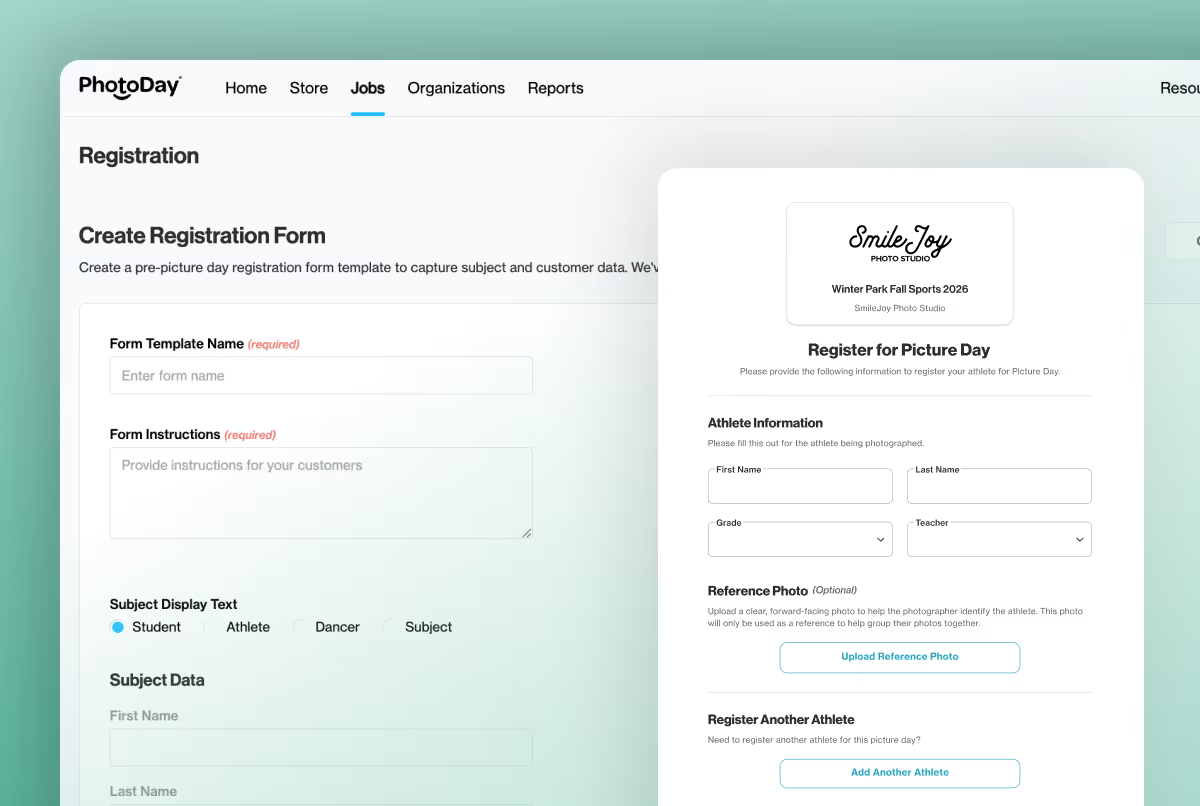
Let parents create their own subject data
From organizations hesitant to share information to juggling your own form solutions, we know gathering subject data before picture day can be a major obstacle.
Our brand-new Registration Forms feature allows studios to share a custom form before picture day that creates and updates Subject records right within PhotoDay—without needing to collect data from the organization.
Simply put, you can now guide customers to create their own Subject Data with a single link.
The result? Convenient, customer-provided data for you that powers notifications and enables a smoother gallery experience for families.
See how it works!
Solving your pre-picture day registration headaches
At PhotoDay, we always strive to streamline every step of your picture day process. From automated marketing and AdvancePay to PhotoDay Capture and FaceFind, our features are designed not only to solve problems but also to innovate the process entirely.
So we heard your requests for a pre-picture day registration form and took it a step further by developing this feature alongside another release: you can now use Subject Data and PhotoDay Capture in Group and Public Galleries! More on that here.
Whether your schools, leagues, and dance studios readily share subject data for each picture day or not, this feature can save you time while engaging and qualifying customers earlier than ever. Let’s see how it works!
Customize and share forms with ease
This new feature is a form that you can create to collect subject data and parent/guardian contact information before picture day. In the PhotoDay Studio Panel, go to Jobs > Registration Forms to create a form template that will act as a foundational framework that you can then customize within each job you attach it to.
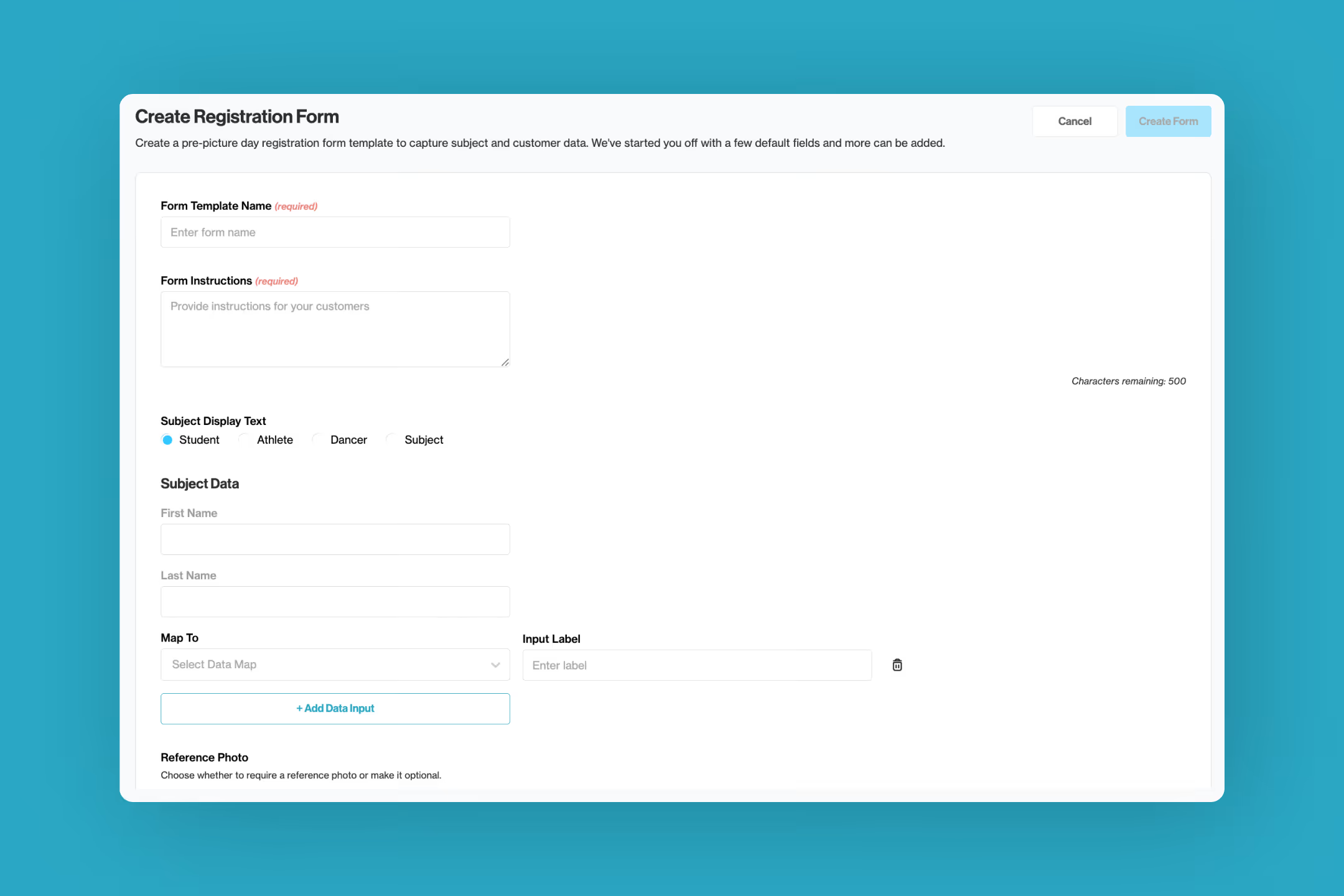
Each form can include:
- Instructions for end customers
- How the person being photographed is referred to (Student, Athlete, Dancer, or Subject)
- Which data fields to collect and how they are labeled
- Whether a reference photo upload is required or optional
- Entry via dropdown menus or open text entry
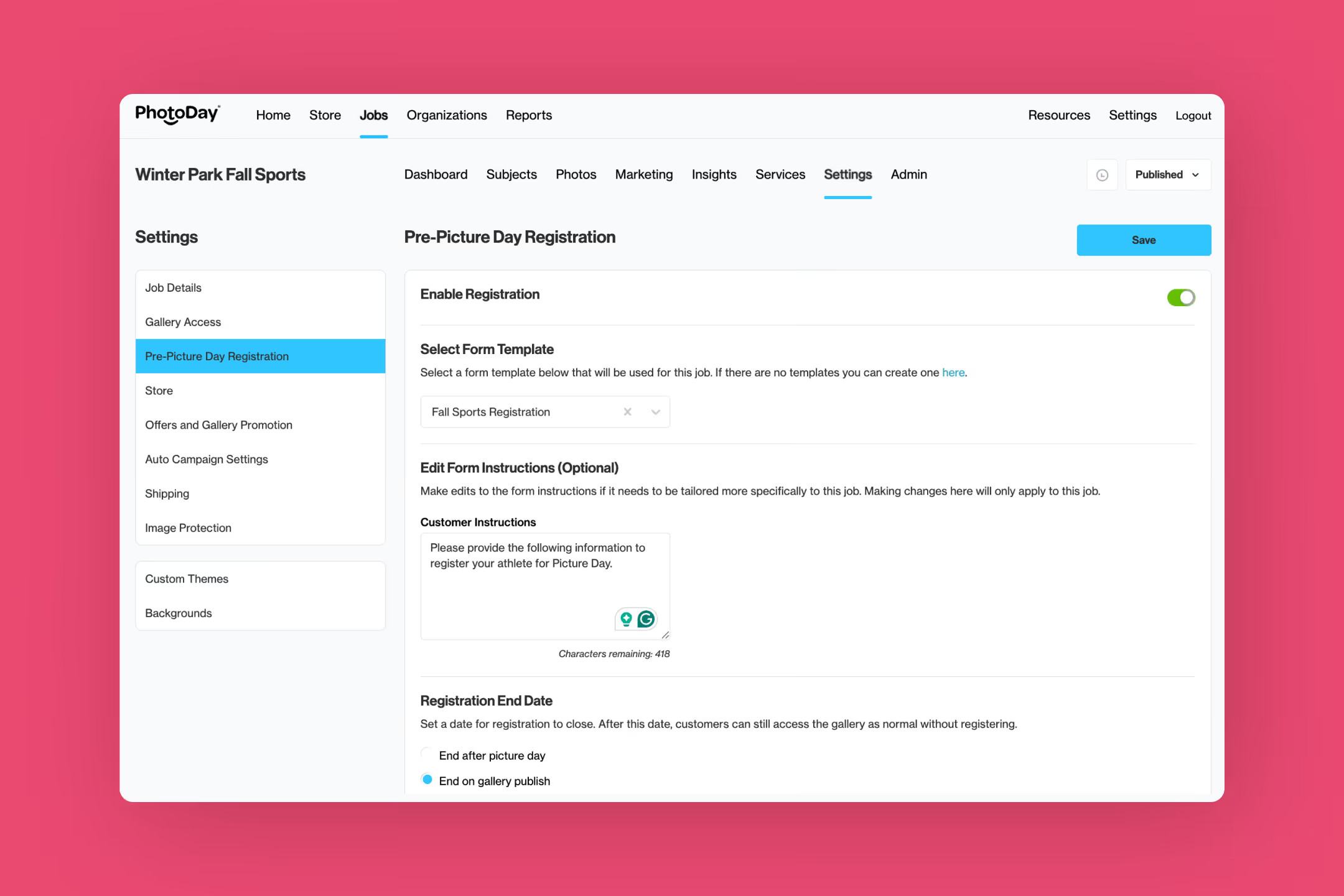
To enable and start using a form, open a job (any type: private, group, or public), and head to the new Pre-Picture Day Registration section under the job settings to further customize its settings.
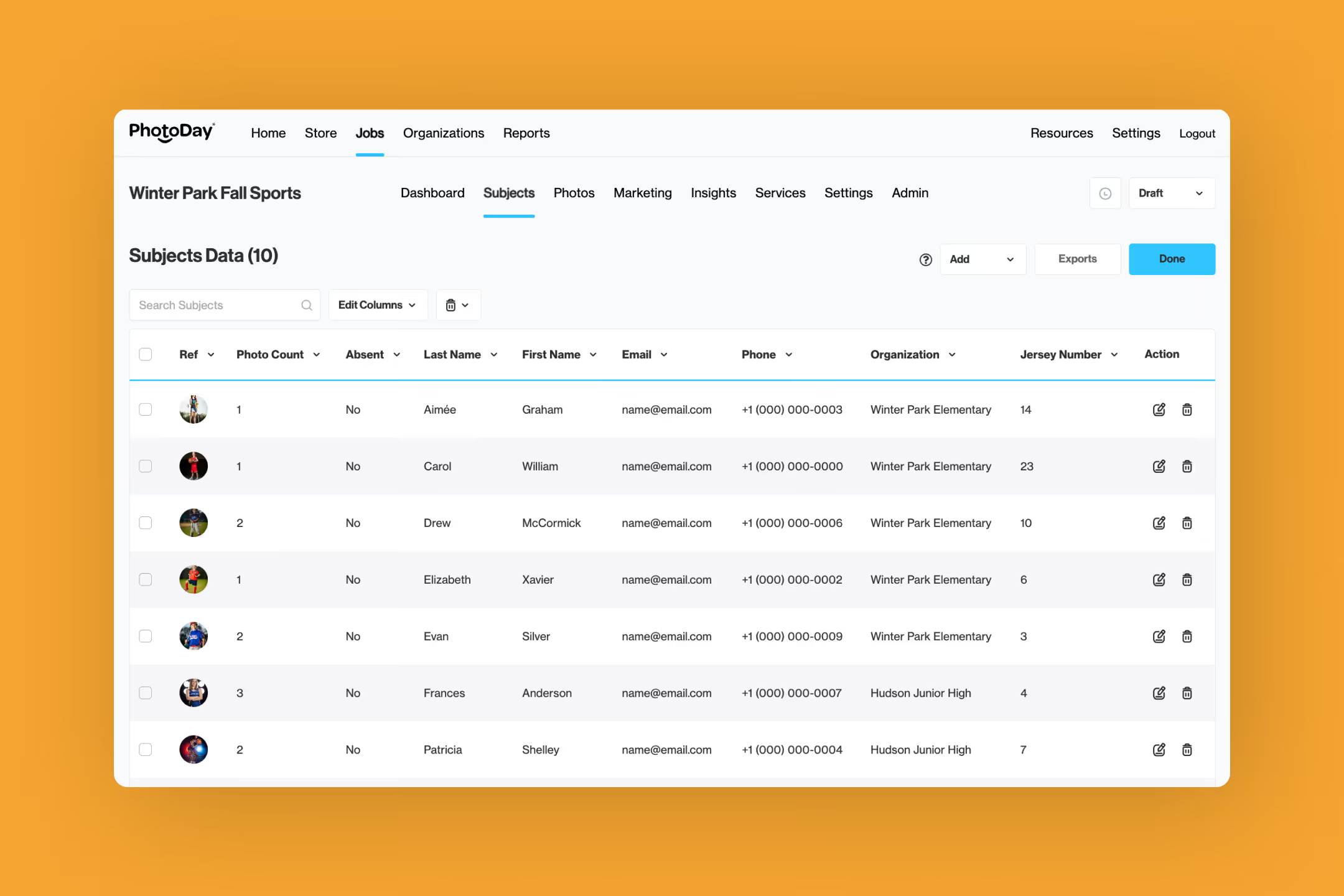
As each form is submitted, the person will be added to the job’s subject data, and you have complete freedom to view, edit, and append these records as needed! If you require a reference photo, your image matching will get an impressive upgrade, too.
A smooth registration experience
Now that you know how to set it up, let’s take a look at the customer experience.
Customers will access the form through the job URL (shared by you and/or the Organization) to submit their subject and contact information.
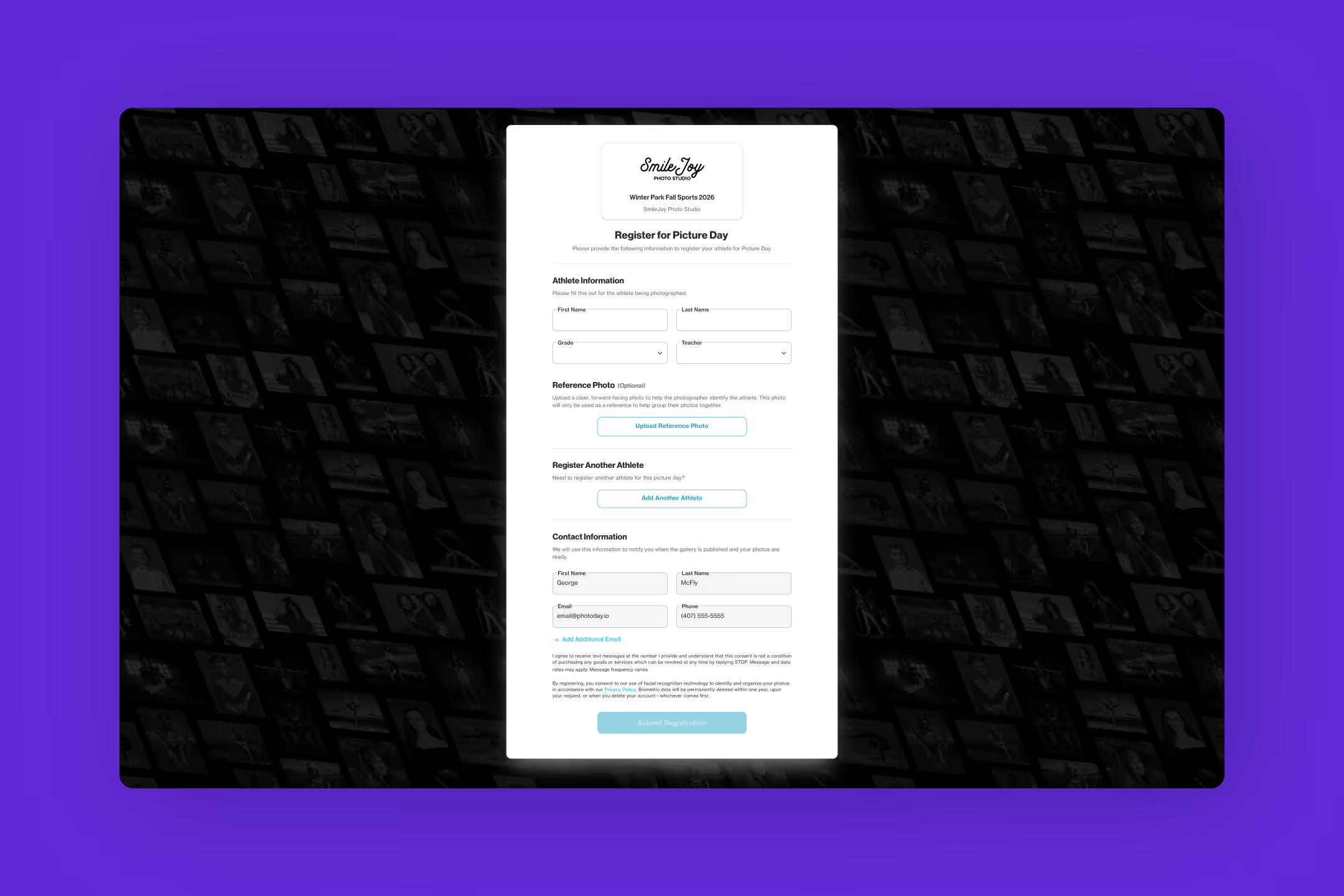
When they’re done registering, customers are directed to the gallery to purchase AdvancePay, preview the storefront, etc., based on the current gallery status.
Speaking of AdvancePay, we have a highly anticipated feature update coming soon, so stay tuned!
A more personalized gallery experience
Let’s explore the customer experience once the gallery is published.
In a Group or Public gallery job, any customer with associated subjects—either by completing a registration form or by logging in with an account that has a matching email address to a subject(s) in the job (thanks to subject data for all job types)—they will be shown a filtered view of only the relevant subject(s)'s photos without having to search for them.

This creates a highly personalized, streamlined experience for customers to view and purchase their photos! They still have the option to browse the rest of the gallery using the enabled search options, but this new flow drastically reduces the number of clicks required from login to checkout.
Get Started
Registration Forms are available now! We’re excited about how this new release integrates and simplifies the registration process while leveling up your data and marketing capabilities! Especially when paired with Subject Data for All Job Types.
{{rt-cta-button}}
Please make sure you're signed into your PhotoDay account to access the support article.


